by myadmin | Jul 13, 2019 | Tip วิธีใช้งาน , TIP-Zidoo
การ Flash เครื่อง Zidoo Z9s
คำเตือน การทำวิธีนี้ท่านต้องมีความรู้ ความเข้าใจในการทำ หากทำพลาดเครื่องท่านอาจมีสิทธิเสียจากการอัพเกรดได้
คำอธิบายเบื้องต้น
1.ให้ดึง External hdd หรืออุปกรณ์ที่ต่อพ่วงกับ Zidoo ออกทั้งหมด
2.ใช้ Flash drive ในการอัพเดดและต้องใช้คอมพิวเตอร์ในการทำด้วยครับ
อุปกรณ์ที่ต้องใช้
1.คอมพิวเตอร์
2.แฟลชไดร์
3.ไม้จิ้มรูเสียบขนาดเล็ก
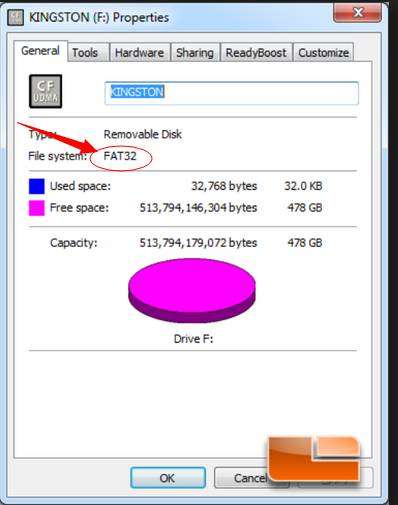
1.ให้เตรียมแฟลชไดร์ที่ เป็น Format FAT 32 ดังภาพ
At the beginning, you need to download the ROM(https://mega.nz/#!qYMyUSYS!w84xlVPvl6ymjnILocIxsmMOQIYY4wPZOICGmq9JmKM ) and rename to “install.img”;
then copied to the Root Directory of the Udisk, then, insert U disk into one of USB3.0 port, as shown below red line mark.
2. ทำการดาวโหลดไฟล์ตามลิ้งนี้ https://mega.nz/#!qYMyUSYS!w84xlVPvl6ymjnILocIxsmMOQIYY4wPZOICGmq9JmKM
จะได้ไฟล์เป็นชื่อ ZIDOO_Z9S_N_v1.7.8_201809292102_usb-install. img แต่ท่านต้องเปลี่ยนชื่อไฟล์ก่อน
สำคัญ!! ให้ทำการเปลี่ยนชื่อไฟล์ด้วยการ Rename เป็น install.img
โยนไฟล์นี้เข้าที่แฟลชไดร์ โดยวางไว้ที่หน้าแรกสุดของแฟลชไดร์
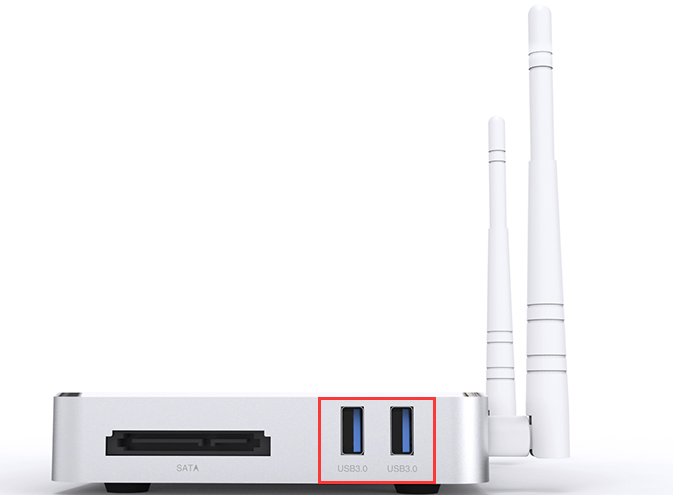
3.นำแฟลชไดร์มาเสียบที่ช่อง USB 3.0 ครับ ดังภาพ
4.จิ้มปุ่ม Restore ค้างไว้ แล้วหลังจากนั้นกดเปิดสวิตไฟเครื่อง โดยที่ยังกด Restore ค้างไว้เช่นเดิม จนกว่าจะขึ้นหุ่น Android หรือจอสีเขียว
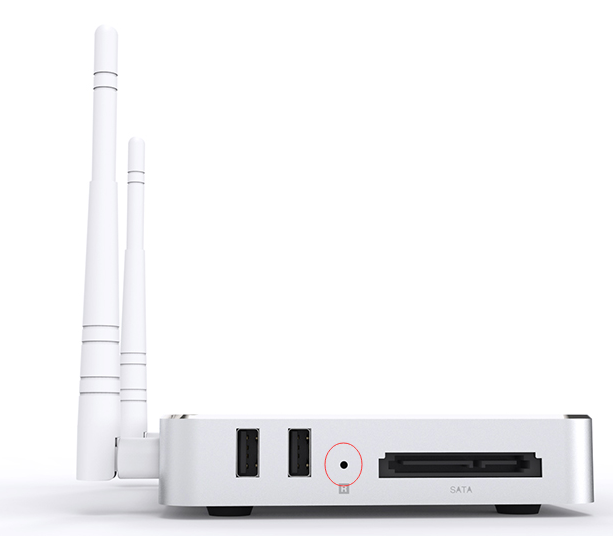
(ให้เสียบสาย HDMI และเสียบไฟรอก่อนทำด้วย)
หน้าจอทีวีจะขึ้นเป็นสีเขียวค้างในบางครั้ง ถือว่าเป็นปกติ ให้ทิ้งเครื่องไว้ 10-20 นาทีแล้วกลับมาดูใหม่อีกครั้ง
(ถ้ากรณีอัพแล้วจอขึ้นสีเขียวให้ ทิ้งเครื่องรอไว้ครับ ห้ามปิด ทิ้งไว้ครึ่งชั่วโมงแล้วกลับมาดูใหม่ครับ)
while you have connect to TV, the TV will show the schedule,proved that you are flashing now,if you have connect to TV,
the TV will show the schedule,proved that you are flashing now,(If not shown or have a green screen, is a normal phenomenon, don’t power off either,just wait for 10 minute until the vfd shows “hello”)
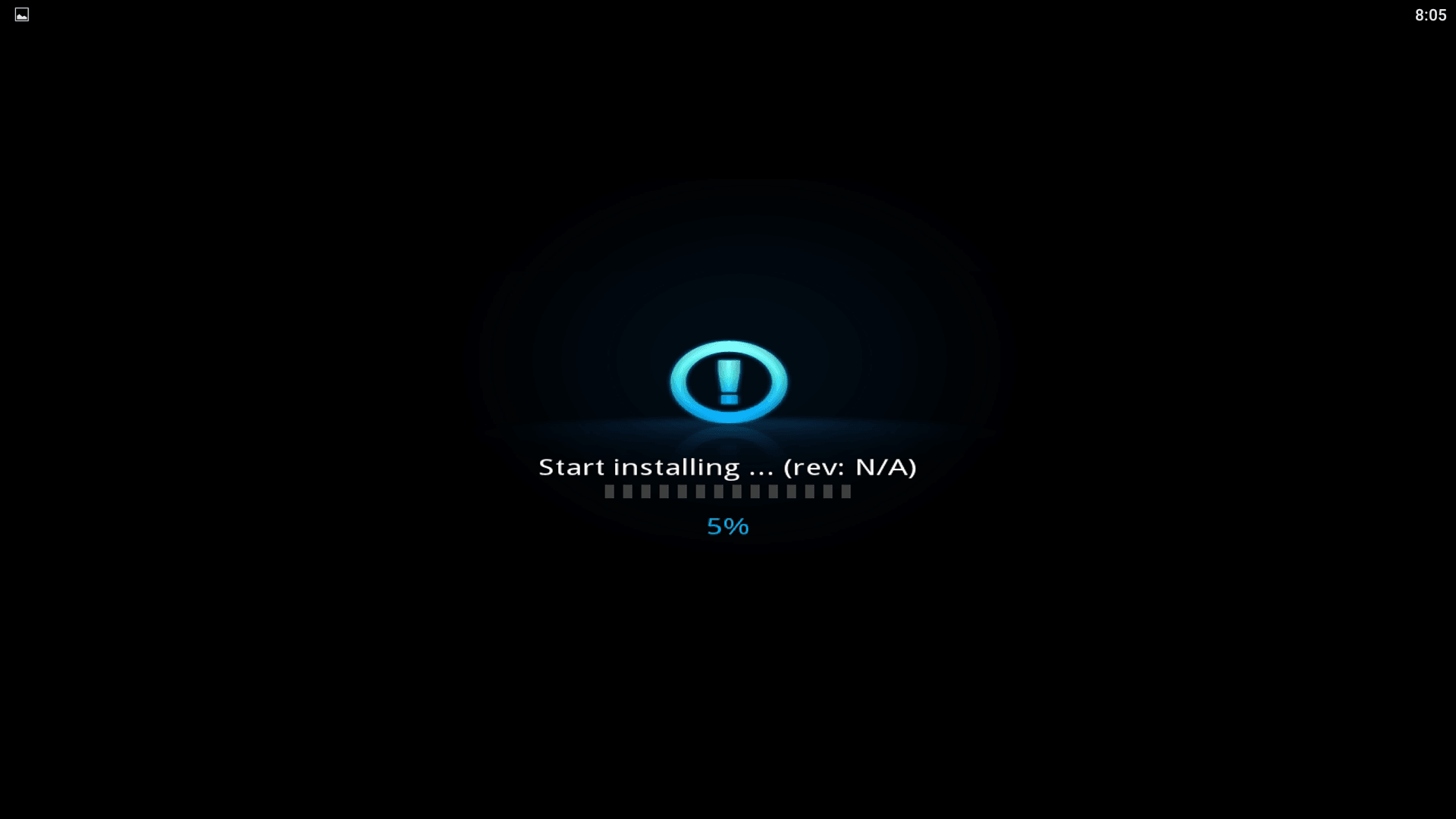
this flash process about two minutes ) , after finishing flashing will showed you install completed,
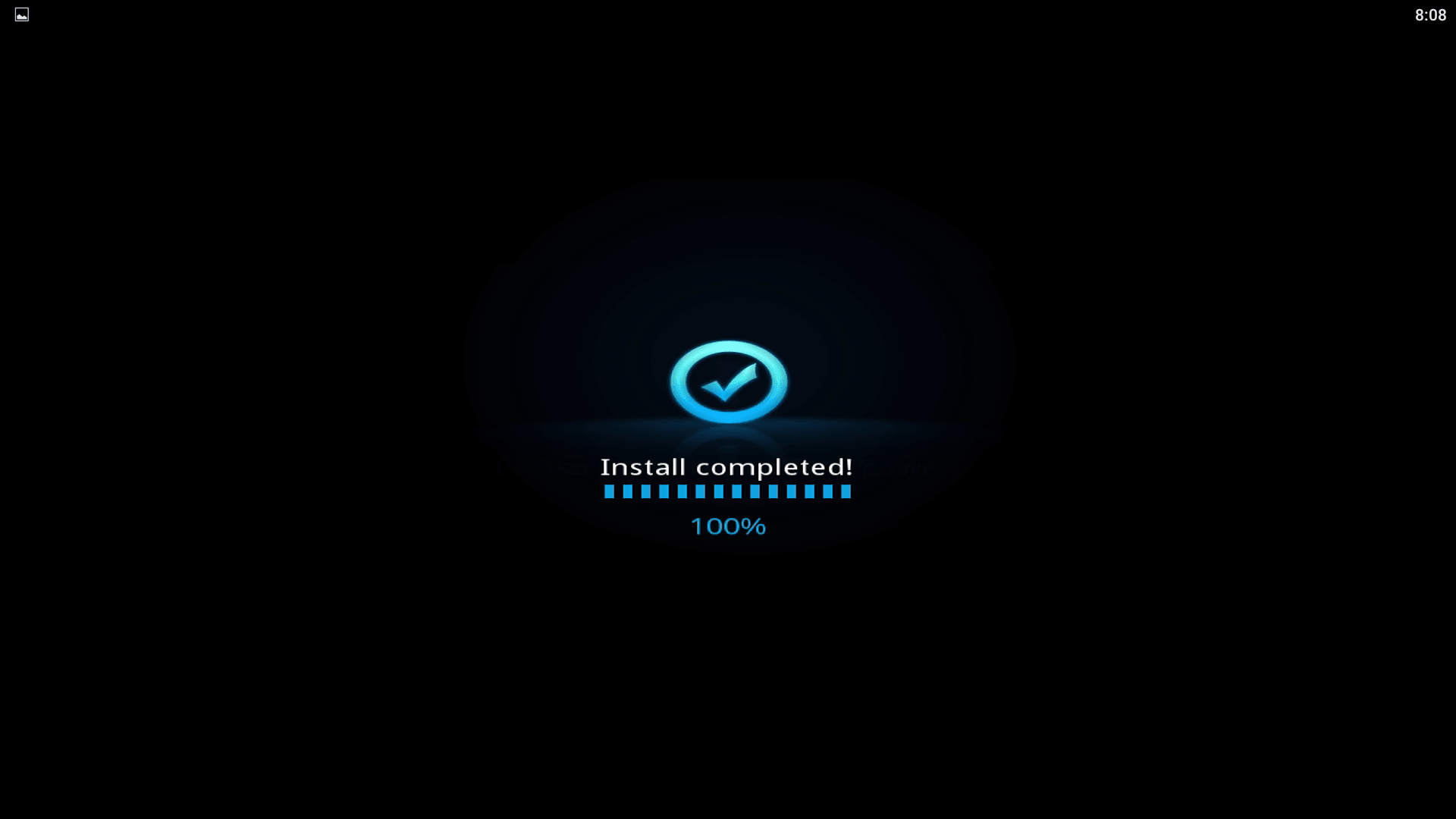
then it will enter the system automatically(It will be a little longer for the first time, about 2 minutes),
by myadmin | Apr 26, 2019 | Uncategorized
Notice: JavaScript is required for this content.
by myadmin | Apr 10, 2019 | ข่าวสาร Update ใหม่ , ข่าวสาร ZIDOO
[vc_row][vc_column][vc_message message_box_color=”black”]ตัวใหม่ของแรงจาก Zidoo นั้นคือ รุ่น Zidoo Z1000 มาพร้อม Realtek 1296DD
มาด้วย Port เชื่อมต่อ Harddisk ภายใน และตัวเครื่องสีดำ ทำด้วยวัสดุอย่างดี
ส่วนราคาและวันวางจำหน่ายทางร้านจะแจ้งให้ทราบเร็วๆนี้ครับ[/vc_message][vc_column_text]
Specs
Model
–Z1000
Front Display
–LED
Shell
–Aviation Aluminum alloy case
OS
–Android + OpenWRT
CPU
–Realtek RTD1296 ARM Cortex-A53 Quad-Core
GPU
-ARM T820 MP3(3-core)
Memory
-2GB
Internal Storage
-16GB eMMC
WIFI Connectivity
-802. 11 AC MIMO Dual-band WIFI
Ethernet
-1*RJ-45 Ethernet Jack(10/100/1000Mbps)
HDMI Out
-HDMI 2.0a,Support 4K@60fps, HDR10
HDMI Input
-HDMI 2.0
Video decode
HDR, 10-bit HEVC/H.265 up to 4K@60fps,VP9 up to 4K@60fps, H.264 up to 4K@24fps
https://haloolahraga.com/daftar-pemain-sepak-bola-yang-paling-berpengaruh-sepanjang-masa-mulai-pele-hingga-messi/
Audio decode
-Support HD audio multichannel direct access and stereo decoding
Power
-100-240V~50/60Hz Max1.3A
Hard Disk
-1*SATA3.0
USB
-2*USB3.0, 2* USB2.0
Other interface
-1*IR Receiver, 1*Composite video and audio port (Cvbs Out), 1*SPDIF(2CH,5.1CH), 1*RS232, 1*SATA 3.0
What’s in the box
-1*Media Player, 1*Remote Control, 1*Power Cable, 1*SATA Cable, 1*User Manual
[/vc_column_text][/vc_column][/vc_row][vc_row][vc_column][vc_column_text] [/vc_column_text][/vc_column][/vc_row]
by myadmin | Mar 23, 2019 | Tip วิธีใช้งาน
[vc_row][vc_column][vc_btn title=”กดโหลดแอพ YCC365 Plus ที่นี้ (มือถือ Android)” style=”3d” color=”danger” align=”center” button_block=”true” link=”url:https%3A%2F%2Fplay.google.com%2Fstore%2Fapps%2Fdetails%3Fid%3Dcom.ycc365plus.aws%26hl%3Den_US||target:%20_blank|”][vc_btn title=”กดโหลดแอพ YCC365 Plus ที่นี้ (มือถือ Android) ลิ้งสำรอง” style=”3d” color=”danger” align=”center” button_block=”true” link=”url:https%3A%2F%2Fdrive.google.com%2Fuc%3Fexport%3Ddownload%26id%3D1j54wMzlJklAWdWR3vRM-qemREC_wUc67||target:%20_blank|”][vc_btn title=”กดโหลดแอพ YCC365 Plus ที่นี้ (มือถือ IOS apple)” style=”3d” color=”danger” align=”center” button_block=”true” link=”url:https%3A%2F%2Fitunes.apple.com%2Fth%2Fapp%2Fycc365-plus%2Fid1435567547%3Fl%3Dth||target:%20_blank|”][vc_separator color=”black” style=”double” border_width=”3″][vc_single_image image=”4188″ img_size=”full” alignment=”center”][vc_separator color=”black” style=”double” border_width=”3″][vc_single_image image=”4194″ img_size=”full” alignment=”center”][vc_btn title=”คลิปวิธีตั้งค่าแบบที่ 1″ style=”3d” color=”blue” align=”center”][vc_video link=”https://www.youtube.com/watch?v=tGwBRweGC58″][vc_separator color=”black” style=”double” border_width=”3″][vc_btn title=”วิธีตั้งค่าแบบที่ 2″ style=”3d” color=”blue” size=”lg” align=”center”][vc_video link=”https://www.youtube.com/watch?v=g8E-RExuZbE”][vc_video link=”https://www.youtube.com/watch?v=rRXjl0xLH28″][vc_message]การตั้งค่ากล้องกับเมมโมรี่การ์ดเพิ่มเติม[/vc_message][vc_video link=”https://www.youtube.com/watch?v=JE6M1zydKrs”][/vc_column][/vc_row]
by myadmin | Mar 13, 2019 | Tip วิธีใช้งาน , TIP-Zidoo
[vc_row][vc_column][vc_column_text]เบื้องต้นแนะนำให้ลูกค้าดูคลิปให้เขาใจก่อนครับ และสามารถทำตามในคลิปได้เลย slot deposit qris
ทางร้านทดสอบกับ Zidoo z9s Firmware version 2.1.30 ครับ[/vc_column_text][vc_video link=”https://www.youtube.com/watch?v=nP_C_zRoP8g”][/vc_column][/vc_row][vc_row][vc_column][vc_message]ในกรณีที่ไม่ได้ลง netflix ไว้แล้ว ท่านสามารถลองโหลด netflix ได้จากลิ้งเว็บนี้ คือ
https://help.netflix.com/en/node/57688 ซึ่งจะเหมือนกับตัวอย่างในวิดีโอ[/vc_message][vc_single_image image=”4159″ img_size=”full”][vc_column_text]หรือ หากท่านหาไม่เจอให้โหลด ไฟล์ apk ที่นี้แล้วนำไปลงที่เครื่อง
https://netflixhelp.s3.amazonaws.com/netflix-4.16-200217-release.apk [/vc_column_text][/vc_column][/vc_row] spaceman slot